AI Video Conversion — Convert Any Video to Any Format Without Losing a Frame
Every app, every device, every platform has opinions about what a video file should look like. A camera shoots MOV with H.265; an editor wants ProRes; a website needs MP4 with H.264; an old TV wants AVI with MPEG-4; a messaging thread wants something under 16 MB. The file on disk is rarely the file you need. A good converter makes that translation cheap, reliable, and invisible — the original goes in, the exact right version comes out, and nothing about the content changes. This article covers how modern video conversion actually works, where it differs from a simple "export to MP4," and how to get the best results with multimedia-soft.com's Video Converter.
Why Convert Video
The phrase "just convert it" hides a real technical problem. A video file isn't one thing — it's a container (the wrapper), a codec (the compression scheme inside), an audio track (often a second codec), possibly subtitle streams, chapter markers, color metadata, frame rate information, and aspect ratio hints. Changing any one of those independently of the others is where most converter tools fail:
- Device compatibility. A modern iPhone shoots HEVC (H.265). A 2015 smart TV reads H.264. A legacy projector reads MPEG-2. Playing the phone clip on the TV needs a codec swap, not a new recording.
- Editing workflows. Cameras optimize for storage — highly-compressed inter-frame codecs like H.265 are great on an SD card and terrible to scrub on a timeline. Editors want intra-frame codecs (ProRes, DNxHR) where every frame is independent. Conversion bridges the two.
- Platform requirements. YouTube accepts almost anything but re-encodes on upload; a clean H.264 master gives the best output. Instagram wants square or vertical and has strict duration limits. LinkedIn is picky about frame rate. Each target needs its own spec.
- Archival durability. Proprietary codecs eventually fall off software support (remember RealVideo? Sorenson?). Converting to well-supported formats before the archive ages avoids a migration emergency ten years later.
- File size. A 90-minute home movie in 4K HEVC might be 15 GB. The same movie in 1080p H.264 could be 2 GB with quality the viewer can't distinguish. Conversion doubles as compression.
How Modern Video Conversion Works
A conversion is really a decode-then-encode pipeline: read the source, understand what it contains, write a new file that represents the same content under different rules. A few things make the difference between "works" and "looks right":
- Lossless decoding first. The input must be fully reconstructed to raw video before re-encoding. Shortcuts that transcode compressed data directly compound errors. Video Converter always decodes to uncompressed frames internally before re-encoding.
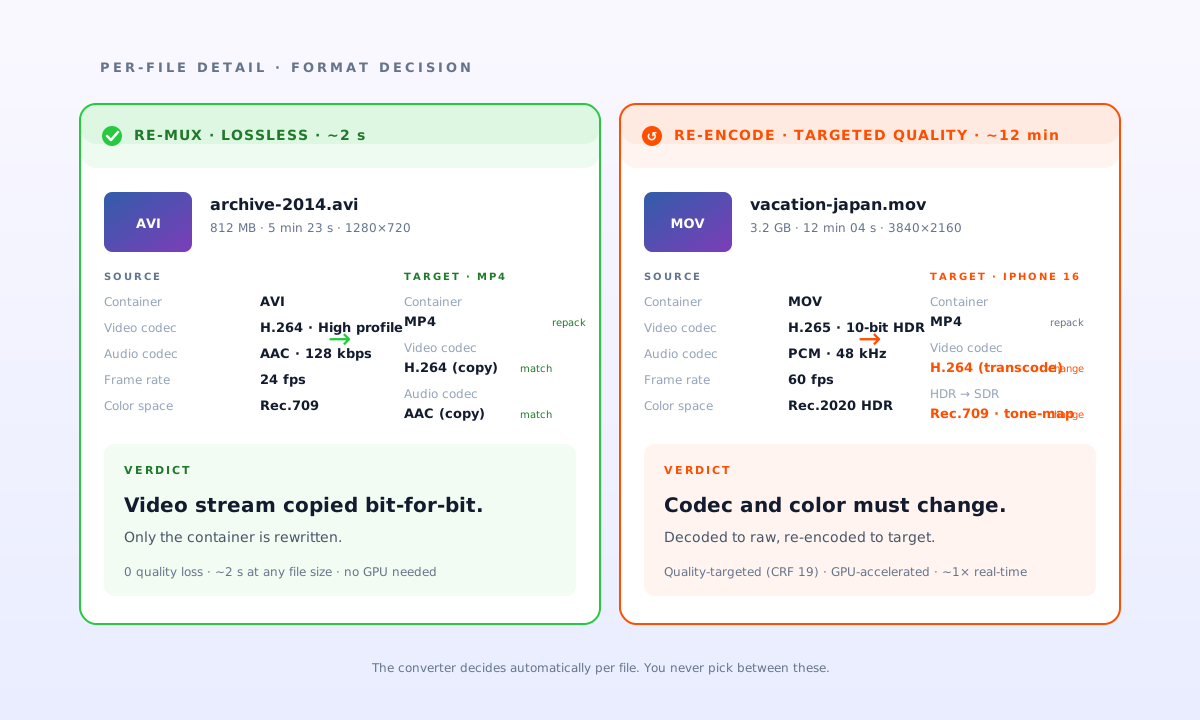
- Smart re-muxing when possible. If the source and target codecs match — H.264 in MP4 to H.264 in MKV, for instance — the video stream can be copied bit-for-bit without re-encoding. Instant output, zero quality loss. Only the container changes.
- Quality-targeted re-encoding when not. When the codec must change, the encoder is told either a bitrate budget or a quality target. Good converters use two-pass or constant-quality modes rather than the single-pass speed defaults that produce uneven results.
- Audio alignment and sample-rate conversion. Video conversion that ignores the audio track produces out-of-sync output or garbled sound. A proper pipeline resamples audio with its own high-quality filters so music and voice stay clean across the conversion.
- Metadata preservation. Color space (Rec.709 vs Rec.2020), HDR hints, rotation flags, chapter markers, subtitle streams, creation timestamps — all of these must carry across, or the converted file breaks in subtle ways on playback.
What Video Converter Does Differently
Free converters handle the easy cases and fail quietly on the hard ones — off-by-one frames, audio drift, color cast, dropped subtitles. Video Converter is built around the problems the quick-and-dirty tools create:
- 1000+ formats in one pipeline. MP4, MKV, MOV, AVI, WMV, WebM, FLV, 3GP, MPEG, VOB, ProRes, DNxHR, HEVC, AV1, VP9 — plus audio-only export to MP3, AAC, FLAC, WAV, OPUS. You pick the target; the right codec, container, and settings are resolved for you.
- Re-mux when it's safe, re-encode when it's not. If your AVI-wrapped H.264 file needs to be an MP4-wrapped H.264 file, the video stream is copied losslessly. Zero quality loss, near-zero processing time. The converter figures this out automatically.
- Preset library keyed to destinations. "iPhone 16," "4K TV," "YouTube Shorts," "Premiere Pro editing," "DaVinci Resolve offline" — each preset encodes the codec, container, frame rate, color space, and quality profile the target actually wants. No more guessing.
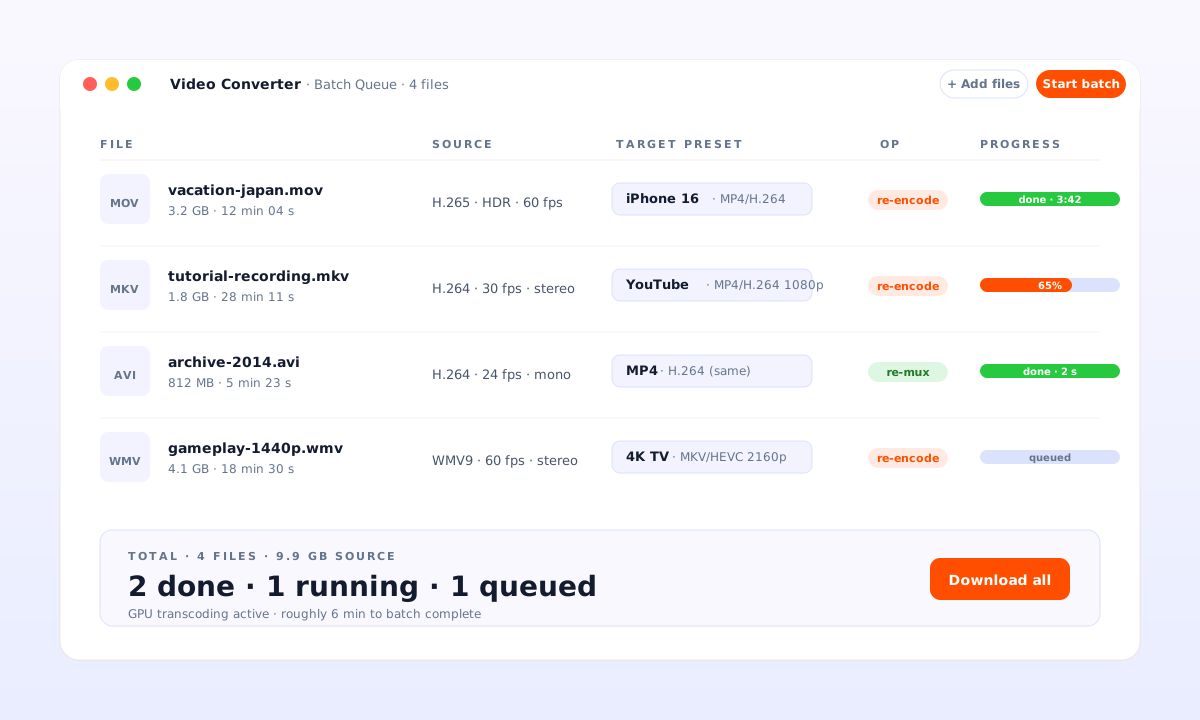
- Batch queue with per-file settings. Convert 50 clips at once, each to a different target if needed. The queue runs in the background; you get notified when everything's done. No per-file clicking.
- Hardware acceleration where available. For H.264 and HEVC encodes, Video Converter uses cloud-side GPU transcoding — often 5–10x faster than CPU-only pipelines at equivalent quality.
How to Convert a Video with Video Converter
The full workflow:
- Upload your source. One file or a batch. MP4, MOV, MKV, AVI, WMV, HEVC, ProRes, DNx, VOB, MPEG — all read natively without special plugins. Files stay on a secure HTTPS session.
- Pick a destination preset. Choose from device (iPhone, Android, PlayStation, Xbox, smart TVs), platform (YouTube, Instagram, TikTok, LinkedIn), or workflow (Premiere, Resolve, Final Cut, archival). "Custom" lets you set codec, container, bitrate, and resolution manually.
- Review what will be copied vs. re-encoded. The converter shows you — per file — whether the video stream can be re-muxed or must be re-encoded. Re-mux is instant and lossless; re-encode takes longer but hits a specific target.
- Run. The batch queue processes files in parallel where quota allows. Expect re-mux operations to finish in seconds; re-encode runs about as long as the video duration for a single-pass job.
- Download. Individual files or a ZIP of the whole batch. Originals stay untouched unless you explicitly delete them.
Tips for Best Results
- Check whether you actually need a re-encode. A container swap (AVI → MP4 with the same H.264 inside) is free in quality and almost free in time. Let the converter tell you before you commit to a long encode.
- Match frame rate, don't convert it. 24 fps cinema footage shouldn't be re-sampled to 30 fps unless you know why. Frame-rate conversion introduces motion artifacts (judder, duplicate frames) that are hard to undo. Leave it at source unless the target requires otherwise.
- Preserve color space where possible. A Rec.2020 HDR source converted without telling the encoder about HDR comes out washed-out. Use the "preserve HDR" preset for HDR sources; use Rec.709 for everything else.
- Batch similar files together. 20 MP4→MOV conversions with the same target run faster as a batch than 20 one-off jobs — encoder settings don't reinitialize between files.
- For archives, pick a widely-supported codec, not the newest one. AV1 is the future; H.264 is the present; something a decade old still plays everywhere. An archive encoded for compatibility ages better than one encoded for pure efficiency.
Frequently Asked Questions
Will my converted video look different from the original?
For re-mux operations (same codec, different container), the video stream is copied bit-for-bit — identical output. For re-encodes, quality depends on the target; constant-quality settings (CRF 18–20 for H.264) produce output that's indistinguishable from the source in normal viewing. Aggressive size targets produce visible compression, which is the trade-off you chose.
What's the largest file I can convert?
Uploads are supported up to multi-GB sizes per file; practical limits depend on your subscription tier. For very large batches or feature-film-length files, contact support — we can arrange larger quotas.
Does the converter handle subtitles?
Embedded subtitle tracks (soft subs — SRT, ASS, VTT, or format-native) are preserved through conversion by default. Burned-in subtitles are part of the image and cannot be separated after the fact, but they survive the re-encode.
Can I extract audio only?
Yes. Pick an audio preset (MP3, AAC, FLAC, WAV, OPUS) as your target; the video stream is discarded and the audio is re-encoded or copied as requested.
Is it safe to convert proprietary or DRM-protected video?
Proprietary codecs without available decoders (some legacy commercial formats) will fail politely — you'll get an unsupported-source message rather than a garbage file. DRM-protected video cannot and will not be decrypted. Please only convert content you have the right to convert.
Why did my conversion take longer than the video duration?
Several reasons: upscaling, HDR-to-SDR conversion, frame rate changes, and high-quality two-pass encoding all add time. Simple container swaps are near-instant; transcode between compressed codecs runs roughly 1x real-time; feature-heavy conversions (upscale + HEVC + HDR mapping) can run 2–3x real-time or more.