AI Video Compression — How to Shrink Video Files Without Losing Quality
Video is the largest thing most of us store. A single 4K phone clip can top a hundred megabytes; an hour of screen recording can fill a gigabyte; a camera roll full of family trips can outgrow any laptop within a year. The usual response is "just lower the resolution" or "compress it harder," and the usual result is muddy, blocky footage that looks worse than the original on every screen you actually own. AI-powered compression solves the trade-off: it looks at what is in the frame and spends bits where the eye will notice them, so a half-size file can look indistinguishable from the source. This article covers how the technology works, where it matters, and how to get the best results with multimedia-soft.com's Video Processor AI.
Why Compress Video in 2026
Storage is cheap, but it isn't free — and more importantly, transfer is expensive:
- Cloud costs compound. A 10 GB video library on a free tier is fine; a 200 GB library on a paid tier isn't. Multiply by every family member, every project, every archive.
- Upload speeds are the real bottleneck. Consumer broadband is still asymmetric — 40 Mbps up is a good day. A 2 GB clip that takes six minutes to upload at half-size takes three. For YouTube queues, client deliverables, and messaging apps, that time is the friction.
- Playback needs to be smooth. A 4K Blu-ray-bitrate file on a phone that can't decode it fast enough stutters. Dropping bitrate without dropping resolution unlocks devices that couldn't play the original.
- Archiving is a forever problem. Home videos, event recordings, course captures — if it's worth saving, it's worth keeping watchable ten years from now. A half-size file is half the storage drain forever.
Good compression isn't a smaller file. It's a file that looks the same and weighs less.
How AI Video Compression Works
Traditional codecs (H.264, HEVC, AV1) compress by finding redundancy — parts of a frame that repeat, parts of motion that predict the next frame, details the human eye can't resolve at normal viewing distance. They work well, but they treat every pixel with the same priority.
AI compression adds a second layer on top of — not instead of — those codecs:
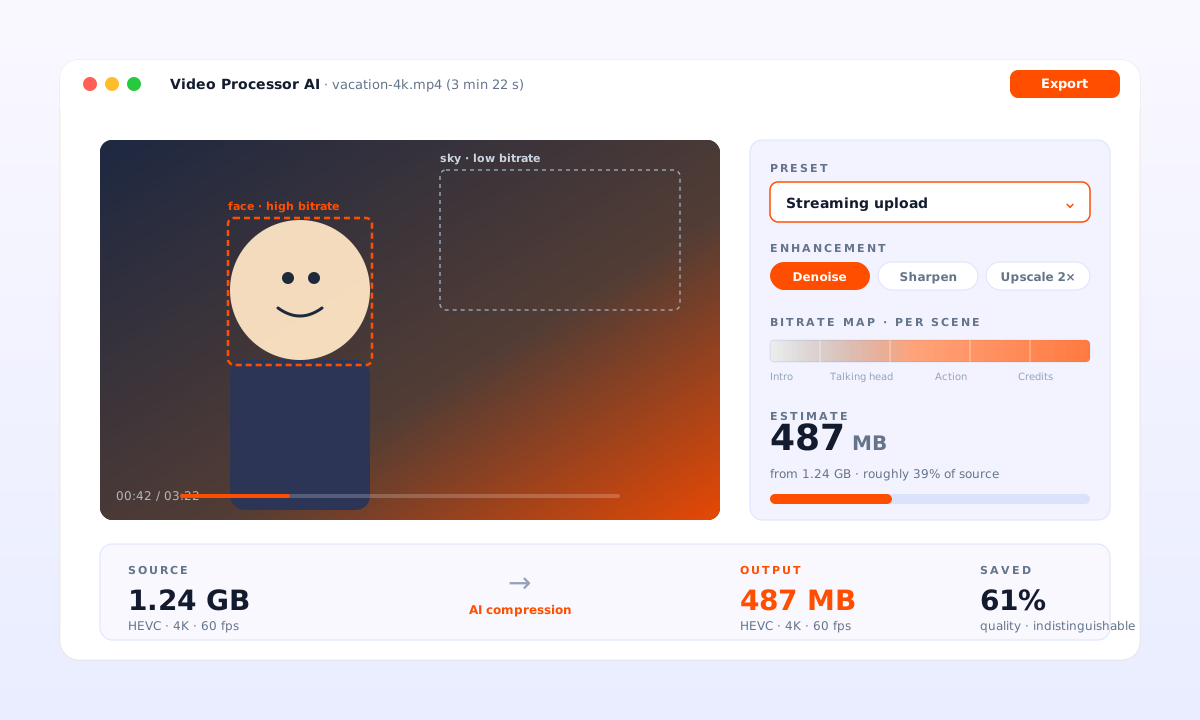
- Perceptual importance maps. The model scores every region of every frame by how much the eye will notice degradation there. Faces, text, high-contrast edges, motion paths the viewer's gaze follows — these are flagged as "spend bits here." Featureless background, defocused bokeh, dark patches — "save bits here."
- Content-aware bitrate allocation. Instead of a flat bitrate across the timeline, the encoder is told where to be generous and where to be thrifty. A talking-head segment gets less bitrate than a fast-action crowd scene.
- Learned denoise-before-encode. Camera grain and sensor noise are expensive to encode — every frame's noise pattern is different. Removing noise that the viewer wouldn't see at 1x zoom lets the codec compress the remaining clean signal much harder.
- Upscale-friendly output. If the model knows the final viewing target is 1080p, it can encode at a lower working resolution and let a learned upscaler reconstruct detail on playback. The file gets dramatically smaller; the playback still looks full-res.
The practical result: files that are 30–60% smaller than a conventional HEVC encode at quality the eye calls identical.
What Video Processor AI Does Differently
Most compression tools hand you a slider — higher quality / smaller file — and make you guess. Video Processor AI takes three additional steps designed for people who don't want to babysit settings:
- Scene-by-scene encoding. The timeline is split into scenes; each one gets its own quality target tuned to what's happening on screen. A static intro card gets compressed hard; the action in the middle is protected.
- Built-in enhancement pass. Because the pipeline already understands the content, the same pass can denoise, sharpen, and upscale — not as a separate step but as part of the same encode. A noisy 720p source can come out as a clean 1080p file in one action.
- Cloud compute, local output. The heavy inference runs on cloud GPUs; you don't need an RTX card or a 90° fan curve. Your file returns as a downloadable MP4, not as a subscription that holds your video hostage.
- Preset library, not settings panel. "Phone sharing," "archive," "streaming upload," "email attachment" — each preset encodes a target audience and delivery channel, not a CRF number. The underlying parameters are tuned; you pick the outcome.
How to Compress a Video with Video Processor AI
The full workflow, end-to-end:
- Upload your source. Drag and drop, or select from your files. MP4, MOV, MKV, AVI, WMV, HEVC — all read natively. Files stay on a secure HTTPS session and are removed from processing after you're done.
- Pick a preset or target size. "Phone sharing" targets about a quarter of the original size at quality that's indistinguishable on a phone screen. "Archive" targets half-size at master quality. "Custom" lets you set a specific target — bitrate, resolution, or final file size in MB.
- Optional: enable enhancement. Toggle denoise, sharpen, or upscale if the source needs it. A 480p tape capture benefits from a 2x upscale pass; a modern 4K clip usually doesn't.
- Encode. Typical processing runs about as long as the video's duration for a single-quality pass, faster for HEVC-to-HEVC and slower for upscale-enabled runs. You get a progress bar and an email when it's done.
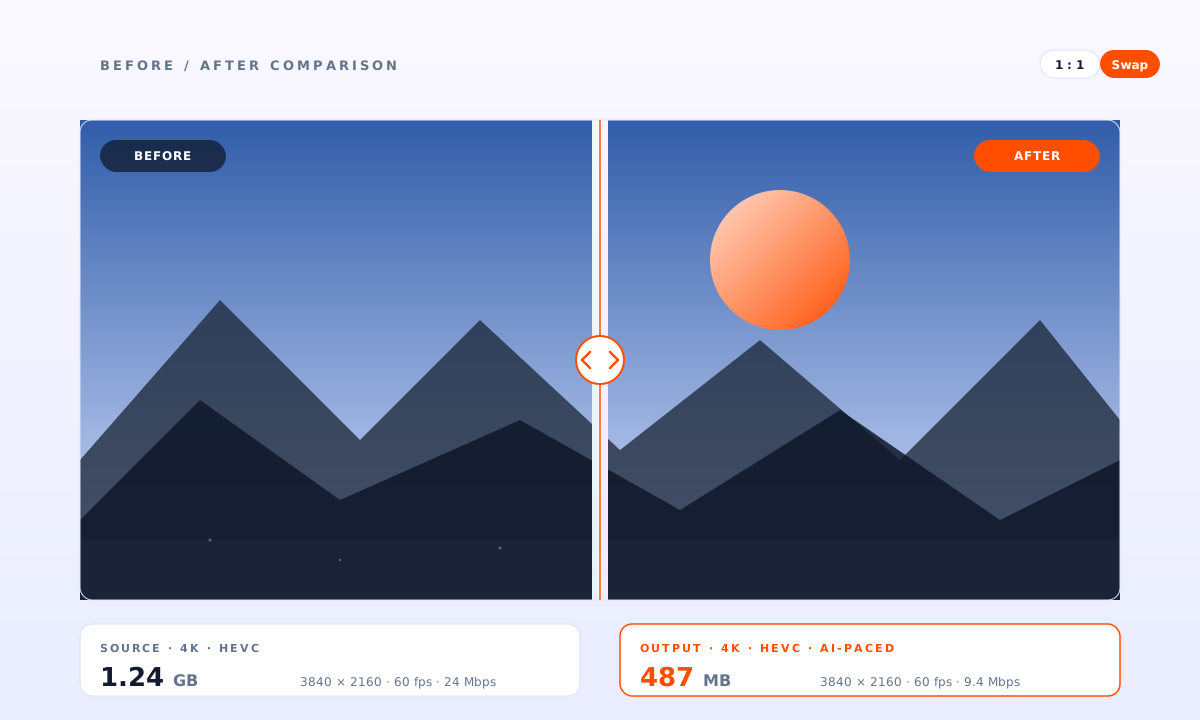
- Review and download. A before/after preview lets you scrub any section to verify. Download the result; keep or discard the original as you prefer.
Tips for Best Results
- Start from the highest-quality source you have. Compression is one-way. A 4K master compressed to 1080p can always be re-compressed smaller later; a 720p re-encode of an already-compressed clip can't recover the lost detail.
- Pick the preset that matches the destination, not "maximum quality." Sending a clip over WhatsApp that will be re-compressed on arrival? "Phone sharing" is correct. Uploading to YouTube, which re-encodes everything? "Streaming upload" wins.
- Enable denoise for tape, old phone video, low-light footage. It's where AI compression pulls the biggest file-size win. Skip it for clean modern footage — the original signal is already clean and denoise can soften detail.
- Use batch for whole folders. A vacation folder of 40 clips compressed one at a time is a Saturday. The same folder queued as a batch is half an hour of processing you don't watch.
- Keep the original until you've confirmed the compressed version plays where you need it. "Plays on my laptop" isn't the same as "plays on my TV." Test the destination device first.
Frequently Asked Questions
How much smaller can I actually make my files?
Typical savings for natural video content — home recordings, event footage, tutorials — are 40–60% off the original size at quality that's indistinguishable in side-by-side viewing. Screen recordings and slideshow-style content can go much further, since so much of the frame is static; 80% savings are common there.
Does the enhanced pass cost more than plain compression?
Yes. AI enhancement (denoise, sharpen, upscale) runs additional inference, so processing time and compute cost are higher. For material that doesn't need it, skip it; for recovered tape or low-light phone footage, it's usually worth the extra step.
What formats does it output?
MP4 with H.264 or HEVC for broadest device compatibility; MKV for archival with lossless or near-lossless modes; WebM when you specifically want the smallest browser-friendly file. Apple ProRes and DNxHR are available for editing workflows that require them.
Is my footage private?
Uploads run over HTTPS and are processed in an isolated session. Files are removed from processing servers after your session ends. We don't train on your uploads.
Can I compress audio-only files?
Video Processor AI focuses on video. For pure audio compression (podcasts, music, voice memos), a dedicated audio tool will give you better results per bit.
Will my subtitles survive?
Embedded subtitle tracks (soft subs) are preserved through compression. Burned-in subtitles are part of the image and survive naturally — though very small burned-in text can soften under aggressive compression, so keep a master copy.